SSD Versus RAM: What Makes a Computer Faster?

A laptop that takes five minutes to open a browser, freezes during video calls, or crawls through schoolwork usually does not need to be replaced. The real question is SSD versus RAM: which part is holding it back? They both affect speed, but they solve very different problems. Choosing the wrong upgrade can waste money and leave your computer just as frustrating as before.
SSD Versus RAM: The Simple Difference
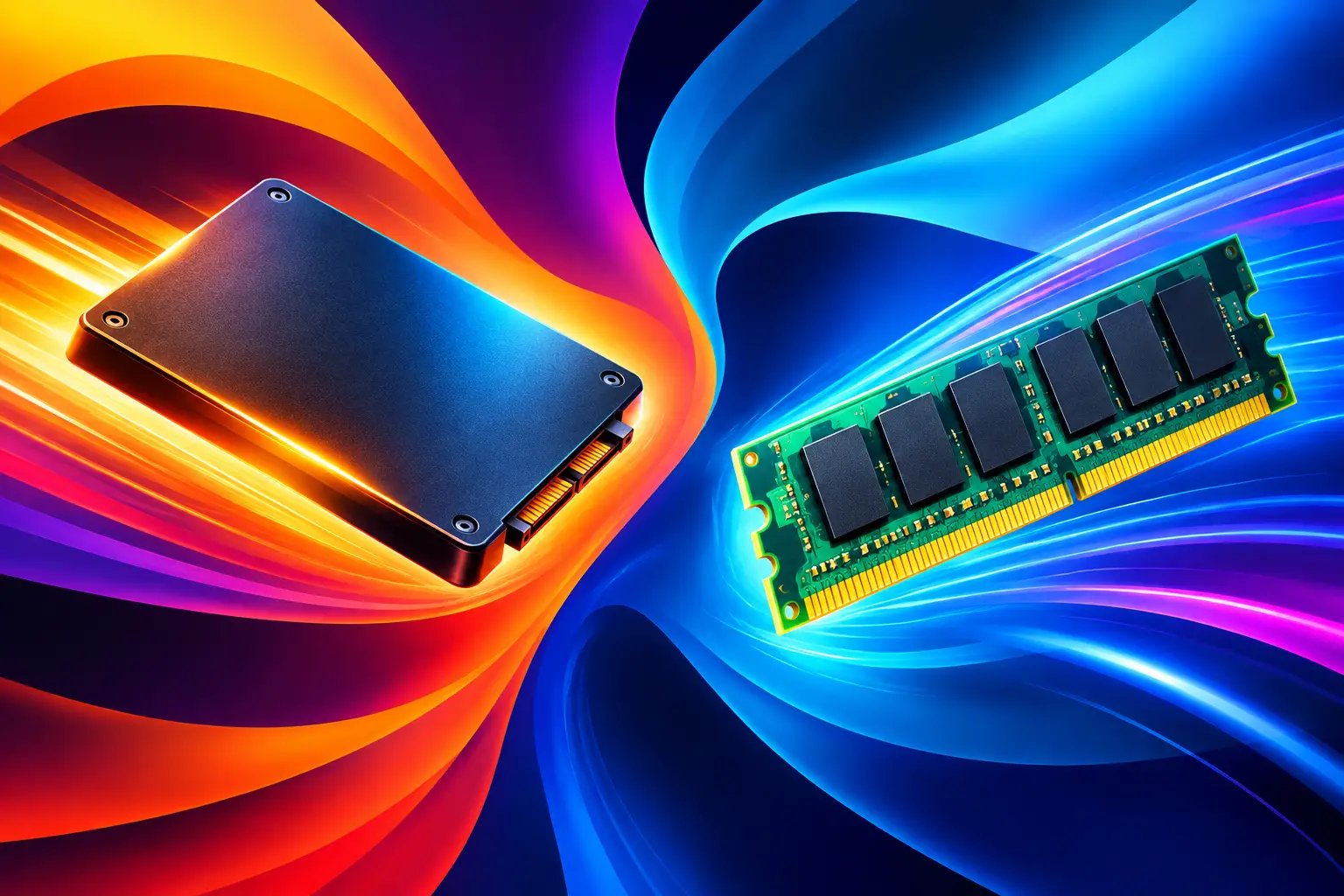
Your SSD is your computer's long-term storage. It holds Windows or macOS, your apps, photos, documents, games, and files even after the computer is turned off. Think of it as the device's filing cabinet.
RAM is short-term working memory. While your computer is on, RAM holds the information it needs right now, such as open browser tabs, a spreadsheet, a Zoom call, and the background programs running behind them. When you shut down the computer, RAM clears.
That difference matters. An SSD helps your computer start up faster, open programs more quickly, and load files or games with less waiting. More RAM helps your computer keep several tasks open at once without slowing down, stuttering, or forcing apps to reload.
Neither one replaces the other. A fast SSD cannot fully fix a computer that runs out of RAM every time you open Chrome. Extra RAM will not make an old, failing hard drive load Windows quickly. The right fix depends on what the computer does when it slows down.
What an SSD Upgrade Changes
Many older desktops and laptops still use a mechanical hard disk drive, often called an HDD. These drives have moving parts. They are slower, more likely to wear out over time, and can make an otherwise usable computer feel painfully outdated.
Replacing an HDD with an SSD is one of the biggest everyday improvements available for many computers. Startup times can drop dramatically. Programs such as Word, Chrome, Outlook, and basic business software generally open faster. Searching for files feels quicker, and the system is less likely to stay stuck on a loading screen after an update or restart.
An SSD is especially worth considering if your computer shows these symptoms: it takes a long time to boot, the hard drive light stays busy when you are doing very little, files take too long to open, or you hear clicking, grinding, or repeated spinning sounds from the machine. Those sounds can also point to a failing hard drive, which should be checked before important files are lost.
Storage capacity matters too. A 256GB SSD may work for email, browsing, documents, and light use. A 500GB or 1TB SSD is often a better fit for families, students with large files, gamers, and anyone storing photos or videos locally. Installing a larger SSD can solve two issues at once: better speed and more breathing room for files.
What More RAM Changes
RAM becomes the problem when your computer slows down only after you start using it. It may boot reasonably fast, then struggle once you open several tabs, stream a video, join a meeting, edit a document, or switch between work apps.
When RAM fills up, the computer starts using storage space as temporary memory. Even with a good SSD, that process is much slower than using actual RAM. You may notice browser tabs refreshing on their own, apps freezing briefly, typing delays, or a spinning cursor whenever you switch windows.
For basic use, 8GB of RAM is still workable for many people. It can handle web browsing, email, streaming, documents, and light schoolwork. However, 16GB is usually the better target for a smoother everyday experience, especially if you keep lots of browser tabs open or work from home.
More demanding tasks may need 16GB or 32GB. Video editing, graphic design, programming, large spreadsheets, music production, virtual machines, and newer PC games can all use memory quickly. Gamers should also remember that RAM is not the same as graphics memory. A game may need more system RAM, but poor graphics performance can also come from an older graphics card or overheating hardware.
Not every laptop can accept more RAM. Some newer thin laptops have memory soldered directly to the motherboard. That is why a quick inspection matters before buying parts that may not fit or may not be compatible.
Which Upgrade Should You Choose First?
If your computer still has a traditional hard drive, an SSD upgrade is usually the first move. It delivers a noticeable improvement for most users because it speeds up the operating system and nearly everything that loads from storage.
If your computer already has an SSD but locks up during multitasking, RAM is more likely to be the answer. This is common on laptops with 4GB or 8GB of memory that are being asked to run modern browsers, office apps, video meetings, antivirus software, and background updates at the same time.
Here is the practical way to think about it: slow startup and slow file loading usually point toward storage. Slowdowns while several apps are open usually point toward RAM. If both are limited, upgrading both can make an older computer feel far more useful without the cost of buying a new one.
There are exceptions. A computer can be slow because of malware, a failing battery, overheating, too many startup programs, a damaged operating system, or an aging processor. That is why guessing based on one symptom is risky. A computer that suddenly became slow, shuts down randomly, or cannot find its drive may need repair, not just an upgrade.
SSD vs. RAM for Gaming, Work, and School
For gaming, an SSD reduces game loading times and makes large updates install faster. It does not usually raise frame rates by itself. RAM helps games run more consistently when there are enough memory requirements, but a weak graphics card or processor will still limit performance. For many gaming PCs, 16GB of RAM and an SSD are a solid starting point.
For remote work and school, RAM often has a bigger effect on daily frustration. Video calls, browser tabs, cloud documents, messaging apps, and presentation software can stack up fast. If your laptop slows down in the middle of a meeting, adding RAM may be more helpful than adding more storage, assuming the machine already has an SSD.
For family computers, an SSD is often the best value when the machine has an old hard drive. It helps with startup, online banking, homework, printing, and general browsing. If multiple people use the computer and it is constantly packed with photos, downloads, and files, a larger SSD can also prevent low-storage warnings.
Do Not Ignore the Condition of the Computer
An upgrade only works when the rest of the device is healthy. A failing hard drive should be replaced before it loses data. A laptop running hot may need internal cleaning, fan service, or new thermal paste. A computer full of unwanted programs or viruses can stay slow no matter how much RAM you add.
The installation itself also matters. An SSD needs the operating system transferred or installed correctly. RAM must match the computer's supported type, speed, and capacity. A mismatched part can fail to work, cause crashes, or leave you with no improvement.
At Limitless Phone Repair, free diagnostics can identify whether storage, memory, malware, overheating, or failing hardware is actually causing the slowdown. That means you get a clear answer before spending money on an upgrade that will not solve the problem.
If your laptop or desktop is becoming too slow to rely on, bring it in before it turns into lost files, missed work, or a last-minute replacement purchase. A quick diagnosis can tell you whether an SSD, more RAM, or a targeted repair is the smart next step.


Comments